
Adding Time on a Calculator: 7 Proven Tips for Easy Results
Adding time on a calculator is a simple way to combine hours and minutes accurately without making common calculation mistakes. Whether you need to calculate work hours, track study time, manage daily activities, or add multiple time durations, understanding the correct method can save time and effort.
In this guide, you’ll learn how to add time on a calculator step by step, how to add hours and minutes, convert time into decimal hours, and calculate total time worked. With easy examples and practical tips, you’ll be able to calculate time quickly and confidently.
How to Add Time on a Calculator: A Simple Step-by-Step Guide
Adding time on a calculator is easy once you understand how hours, minutes, and seconds work together. Whether you are calculating study hours, tracking work shifts, planning a project, or combining different time durations, the correct method helps you get accurate results without confusion.
Unlike ordinary numbers, time follows a base-60 system. This means 60 minutes equal one hour, and 60 seconds equal one minute. For example, 2 hours and 45 minutes plus 1 hour and 30 minutes equals 4 hours and 15 minutes, not 3 hours and 75 minutes.
In this guide, you will learn how to add time on a calculator, add hours and minutes manually, convert time into decimal hours, calculate total time worked, and avoid common mistakes.
What Does Adding Time on a Calculator Mean?
Adding time on a calculator means combining two or more time durations to find their total. You can add hours, minutes, and seconds to calculate how long activities take altogether.
For example, if you study for 1 hour and 25 minutes in the morning and another 2 hours and 40 minutes in the evening, adding both durations gives you a total of 4 hours and 5 minutes.
A time addition calculator can perform these calculations automatically. However, understanding the manual method is useful when you have a basic calculator or need to check a result.
7 Proven Tips for Adding Time on a Calculator
1. Separate Hours and Minutes Before Adding
The easiest way to add time is to calculate the hours and minutes separately. This method helps you avoid mixing minutes with decimal values.
Suppose you want to add 2 hours and 20 minutes to 3 hours and 15 minutes.
| Time unit | First duration | Second duration | Total |
|---|---|---|---|
| Hours | 2 | 3 | 5 |
| Minutes | 20 | 15 | 35 |
The final answer is 5 hours and 35 minutes (5:35).
Always keep the hours and minutes separate until you have finished adding them.
2. Convert Every 60 Minutes Into One Hour
When the total number of minutes reaches 60 or more, convert the extra minutes into hours. This is one of the most important rules for adding hours and minutes on a calculator.
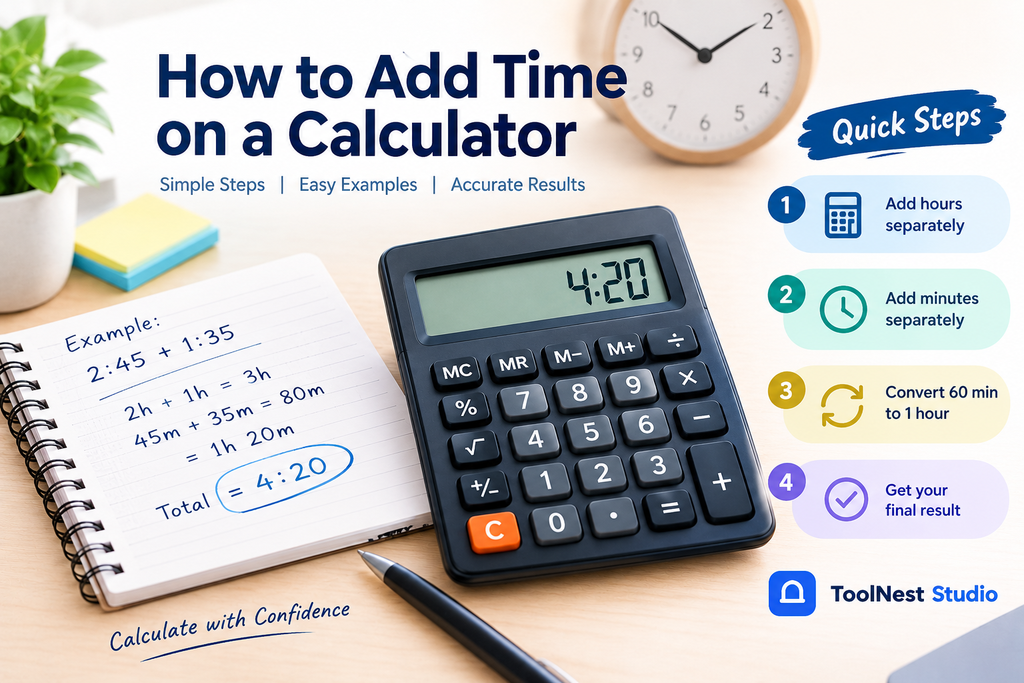
For example, add 2 hours and 45 minutes to 1 hour and 35 minutes.
- Add the hours: 2 + 1 = 3 hours.
- Add the minutes: 45 + 35 = 80 minutes.
- Convert 80 minutes into 1 hour and 20 minutes.
- Add the extra hour to the existing total.
The correct answer is 4 hours and 20 minutes (4:20).
Do not leave the answer as 3 hours and 80 minutes. Although the values add up numerically, that is not the standard format for expressing time.
3. Use a Time Addition Calculator for Faster Results
A time addition calculator is useful when you need to combine several durations quickly. Depending on the tool, you can enter hours and minutes separately or enter time in an HH:MM format.
Follow these steps:
- Open a suitable time calculator.
- Enter the first duration, such as 1 hour and 40 minutes.
- Enter the second duration, such as 2 hours and 35 minutes.
- Add more durations if the calculator supports multiple entries.
- Calculate the result and check the total.
For this example, 1:40 + 2:35 = 4:15.
You can explore the ToolNest Studio calculator collection to find relevant calculation tools. If you are using a basic calculator without a dedicated time function, use the manual method described below.
4. Learn How to Add Time on a Basic Calculator
A standard calculator usually treats numbers as decimals. Therefore, entering 1.45 + 2.30 does not correctly add 1 hour 45 minutes and 2 hours 30 minutes.
To get the correct answer, add the hours and minutes separately.
Example: 1 hour 45 minutes + 2 hours 30 minutes
- Hours: 1 + 2 = 3.
- Minutes: 45 + 30 = 75.
- Convert 75 minutes into 1 hour and 15 minutes.
- Combine the totals: 3 + 1 hour = 4 hours.
The final answer is 4 hours and 15 minutes.
This method works with any basic calculator because it does not require a special time function.
5. Convert Minutes Into Decimal Hours When Necessary
Decimal hours are commonly used for timesheets, payroll calculations, invoices, and project tracking. To convert minutes into decimal hours, divide the number of minutes by 60.
Use this formula:
Decimal hours = Hours + (Minutes ÷ 60)
Here are some common conversions:
| Time duration | Decimal hours |
|---|---|
| 15 minutes | 0.25 hours |
| 30 minutes | 0.50 hours |
| 45 minutes | 0.75 hours |
| 1 hour 15 minutes | 1.25 hours |
| 1 hour 30 minutes | 1.50 hours |
| 2 hours 45 minutes | 2.75 hours |
For example, 3 hours and 30 minutes equals 3 + (30 ÷ 60), or 3.5 decimal hours.
Remember that 3 hours and 30 minutes is not 3.30 decimal hours. The value after the decimal point represents a fraction of an hour, not a number of minutes.
6. Add Multiple Time Durations Together
When calculating total study time, project hours, or daily activities, you may need to add more than two durations.
Consider these three sessions:
- Morning: 1 hour 25 minutes
- Afternoon: 2 hours 40 minutes
- Evening: 1 hour 50 minutes
First, add the hours: 1 + 2 + 1 = 4 hours.
Next, add the minutes: 25 + 40 + 50 = 115 minutes. That equals 1 hour and 55 minutes.
Combine both totals to get 5 hours and 55 minutes.
For longer lists of time entries, a spreadsheet or time addition calculator can reduce manual effort. Check that the tool supports cumulative durations rather than only calculating the difference between start and end times.
7. Check Your Result Before Using It
Even a small calculation error can affect a timesheet, schedule, or project estimate. After adding time, verify that the minutes are below 60 in the final standard hours-and-minutes format.
Use this quick checklist:
- Add hours and minutes separately.
- Convert every complete 60 minutes into an hour.
- Carry any remaining minutes into the final result.
- Check whether the answer should be expressed as HH:MM or decimal hours.
- For work calculations, subtract unpaid breaks where appropriate.
These checks make it easier to calculate total time accurately.

How to Calculate Hours and Minutes Without Mistakes
The manual method is especially helpful when you need to add time without using an online tool.
Follow the formula:
Total time = Sum of hours + Sum of minutes, converted into standard time
For example, calculate 4 hours 35 minutes + 2 hours 50 minutes.
| Step | Calculation | Result |
|---|---|---|
| Add hours | 4 + 2 | 6 hours |
| Add minutes | 35 + 50 | 85 minutes |
| Convert minutes | 85 − 60 | 1 hour 25 minutes |
| Combine totals | 6 hours + 1 hour 25 minutes | 7:25 |
The final result is 7 hours and 25 minutes.
The same method works when adding several time durations. If the combined minutes equal 120, carry two additional hours. If they equal 145, carry two hours and retain 25 minutes.
How to Calculate Total Time Worked
Calculating total time worked is slightly different from simply adding durations. You usually calculate the difference between the start and end times, subtract unpaid breaks, and then add the daily totals.
Use this formula:
Hours worked = End time − Start time − Unpaid break
For example, suppose an employee starts work at 9:00 AM and finishes at 5:30 PM, with a 30-minute unpaid break.
| Calculation | Result |
|---|---|
| Time between 9:00 AM and 5:30 PM | 8 hours 30 minutes |
| Subtract unpaid break | 30 minutes |
| Total time worked | 8 hours |
If the employee works eight hours on Monday, seven hours and 30 minutes on Tuesday, and eight hours and 15 minutes on Wednesday, add the three daily totals.
The result is 23 hours and 45 minutes.
For payroll, follow the employer’s applicable rules for paid breaks, overtime, rounding, and recordkeeping. A simple hours and minutes calculator does not automatically determine legal pay entitlements.
How to Add Time When a Shift Crosses Midnight
An overnight shift can be confusing because the end time appears earlier than the start time on a clock.
For example, a shift begins at 10:00 PM and ends at 6:00 AM the next day.
- From 10:00 PM to midnight: 2 hours.
- From midnight to 6:00 AM: 6 hours.
- Total elapsed time: 8 hours.
If there is a 30-minute unpaid break, the total working time is 7 hours and 30 minutes.
When using a calculator, make sure it supports overnight shifts or enter the two parts separately. If you are calculating elapsed time across different dates, include the correct dates to avoid errors.
Common Mistakes When Adding Hours and Minutes
Avoid these common errors when using a time addition calculator.
Treating Minutes as Decimal Numbers
Adding 1:45 and 2:30 as 1.45 + 2.30 gives 3.75, which is not the correct time duration. The correct answer is 4 hours and 15 minutes.
Forgetting to Carry Extra Minutes
If your total is 2 hours and 90 minutes, convert 60 minutes into one hour. The correct total is 3 hours and 30 minutes.
Forgetting to Subtract Breaks
When calculating work hours, remember to deduct unpaid breaks from the time between starting and finishing work.
Confusing Time Addition With Time Duration
Adding two durations is different from finding the time between a start and end point.
Frequently Asked Questions
How do you add time on a calculator?
To add time on a calculator, add the hours separately from the minutes, then convert every 60 minutes into one additional hour. For example, 2:45 + 1:35 = 4:20.
Can I add hours and minutes on a regular calculator?
Yes, you can add hours and minutes on a regular calculator by calculating each unit separately. Add the minutes, convert every 60 minutes into an hour, and then combine the totals.
What is the easiest way to add time?
The easiest method is to use an online time addition calculator that accepts hours and minutes. For simple calculations, adding hours and minutes separately is also quick and reliable.
How do I convert minutes into hours?
Divide the number of minutes by 60 to convert minutes into decimal hours. For example, 45 minutes equals 45 ÷ 60 = 0.75 hours.
How do I add 1 hour 45 minutes and 2 hours 30 minutes?
Add the hours to get 3 hours and the minutes to get 75 minutes. Convert 75 minutes into 1 hour and 15 minutes to get a final answer of 4 hours and 15 minutes.
How do I calculate total time worked?
Subtract the starting time from the ending time, then deduct unpaid breaks. Add the daily totals to calculate the total hours worked for a week or another period.
Why is 1.30 not the same as 1 hour 30 minutes?
The number 1.30 in decimal hours means 1 hour and 18 minutes because 0.30 × 60 = 18 minutes. One hour and 30 minutes equals 1.5 decimal hours.
Can I add more than two time durations?
Yes, you can add any number of time durations by totaling all the hours and minutes separately. Convert each complete 60 minutes into an hour to obtain the final result.
Conclusion
Adding time on a calculator becomes straightforward when you understand the difference between time notation and decimal numbers. Whether you are adding hours and minutes, calculating total time worked, or converting minutes into decimal hours, the key is to use the correct method and check your final result.
For quick calculations, use a suitable time addition calculator. For manual calculations, add hours and minutes separately and convert every 60 minutes into one hour. These simple steps help you calculate time accurately for studying, working, scheduling, and everyday tasks.